


- Event Promotion Tips
How to sell more tickets this Black Friday and Cyber Monday
-
By Dale Grogan
- 17 Nov 2026
- 7 min read
Black Friday and Cyber Monday (27th and 30th November) are among the UK’s biggest annual retail events, with Black Friday itself widely regarded as the biggest shopping day of the year.
With so many bargain hunters looking for a deal, it stands to reason that offering a discount on your tickets could help you sell more. Should you choose to pass up the opportunity, well, that’s on you, and we’d be well within our rights to call you a silly goose.
Luckily, for those yet to set up a discount, there’s still time to create a promotion (details of how to do so and the benefits of getting involved later in this article).
Once your discounts are up and running, follow our advice below to get eyes on your marked-down tickets and send your sales skyrocketing in the lead-up to the busy festive period.
Start with a launch post and a final reminder
If you’re strapped for time and can only muster creating a couple of posts for your social pages, it’s important that you make them count.
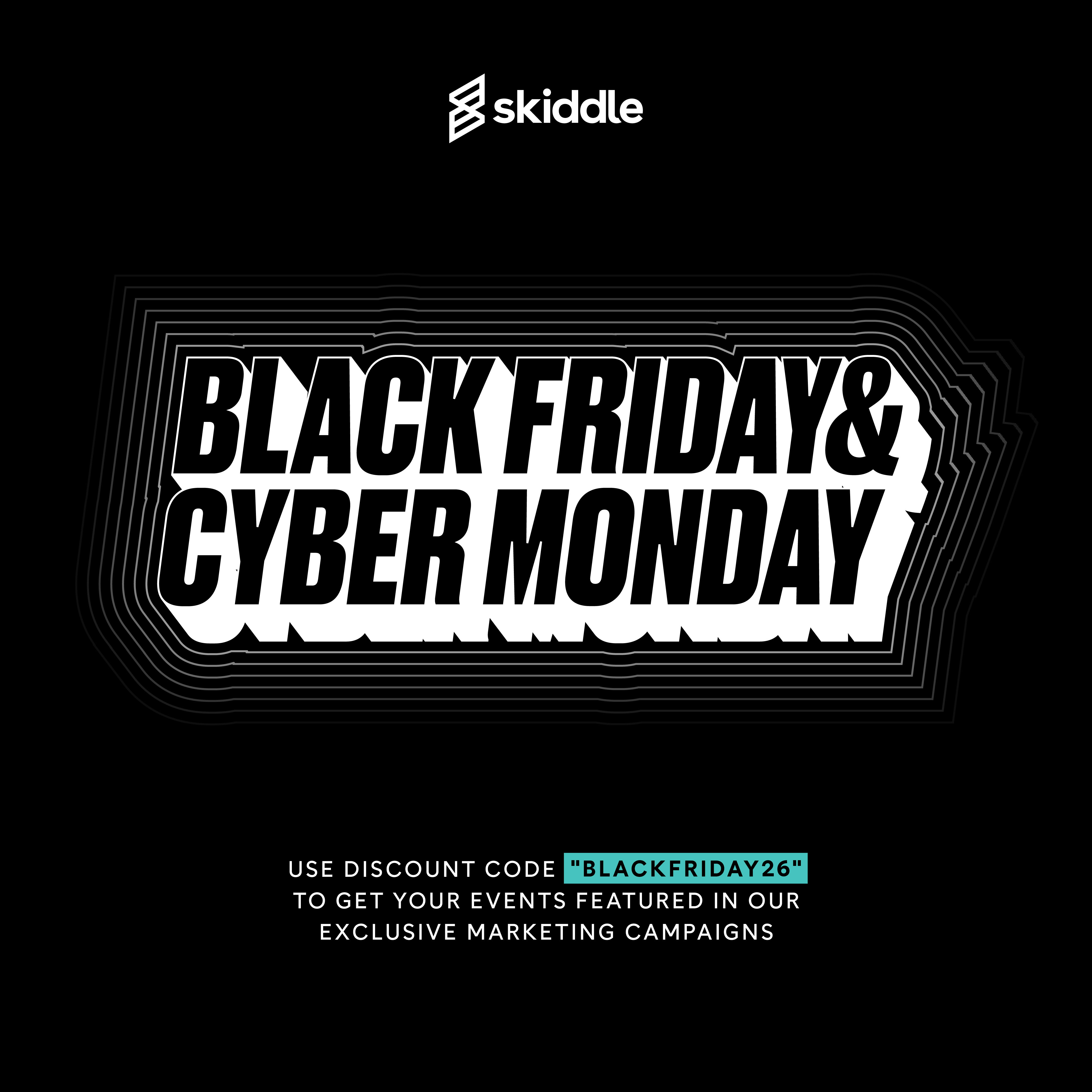
- When your offer goes live: tell fans exactly what they’ll save. Put the discount code front and centre and link straight to your Skiddle event listing in your caption. Make sure your design is bold to catch the attention of scrolling customers (like ours below).
- On the final day: engage customers still on the fence by promoting the exact time the offer ends, so fans know exactly how long they have left to book. You could also use Instagram Stories to create a countdown with a sticker link that takes fans straight to your discounted tickets.
Here’s a line you can lift for your launch post:
“Get 20% off selected tickets to (Event) with the discount code BLACKFRIDAY26 on Skiddle. Offer ends (day) at (time). Get tickets: (link).
Give your email subscribers a reason to book
If you already send a newsletter, put the offer at the top of your next email and give readers one clear button to tap. A “Get discounted tickets” button or call-to-action that takes them straight to your event makes it easy to act while the offer’s live.
Start with a subject line that puts the deal up front:
- Launch email: Get 20% off tickets to (Event) this Black Friday
- Final reminder: Last chance to save 20% on (Event) tonight
If you can segment your data and email past attendees separately, make the message feel like a friendly invitation back. Use content from previous events to entice them and remind them of past good times, and add a line about what’s coming up at your discounted event. This will do more than any generic sale graphic could. Plus, when your emails feel more personalised, stats show that customers are more likely to buy.
Get your venue and performers involved
The performers at your event will have a dialled-in audience, as will your venue. So, team up with them and get them to share news of your discounted tickets to an audience with a reason to care – a mutually beneficial assignment.
Package your promotional assets and all other important details together in one tidy folder and pass this onto your artists and venue managers. Keep the ask simple so they can share assets and links to your discounted tickets via their own channels with ease.
Looking to reach people beyond your existing audience? Good thinking! Get on the hunt for a local what’s-on account, influencer or creator who might give some love to your event in return for free entry.
Put budget behind a post that’s already working
The launch post is out and doing well, but you’ve got the time and budget to try and engage even more social media users.
Our best advice? Repurpose and put some spend behind a post or a clip that’s previously received a good response. This could be footage from your last event, for example. This sort of content can give people a feel for what they’re booking, while a clear line on screen tells them what they’ll save using the discount code.
Include the discount, BLACKFRIDAY26 and the deadline in the ad itself. Send people straight to the Skiddle listing and schedule the ad to stop when the offer ends.
Still need to set up your Black Friday offer?
Use BLACKFRIDAY26 to qualify your discounted tickets for Skiddle’s Black Friday and Cyber Monday marketing campaign, which includes our Black Friday and Cyber Monday Inspire Me page and promotion through our weekly customer newsletter – sent to more than half a million subscribers every week.
Follow these steps to create your discount:
- Log in to the Skiddle Promotion Centre and select your event.
- Go to “Manage Tickets” → “Discount Codes” → “Create One Here”.
- Enter your “Promotion Name” and choose the ticket you want to discount. Set a percentage or fixed amount and select “Multi-use” under “Usage Limit”.
- Enter BLACKFRIDAY26 in the “Discount Codes” box and click “Save” (Please note: codes entered in the Promotion Centre must be lowercase, but customers can enter them in either lowercase or uppercase at checkout).
If your margins allow, we recommend offering 20% off based on how discounts performed in previous Black Friday and Cyber Monday campaigns on Skiddle.
Once your offer is set up, get to work on scheduling your social posts and reaching out to those who could help.
See our how-to video tutorial on creating discounts for more.
 Watch video
Tags
Got a question you need an answer to?
Give us a call on 03333010301 or ask us a question over on the Skiddle Promoter Twitter account by clicking or tapping on the button below. Alternatively, you can also find a list of our most frequently asked questions over at https://help.promotioncentre.co.uk
Latest articles
Read article
Welcome to Skiddle: The Donkey, Leicester
-
By Dale Grogan
- 17 Nov 2026
- 3 min read
Read article
Key dates for ticket sales this festive season
-
By Ryan Moss
- 11 Nov 2026
- 9 min read
Read article
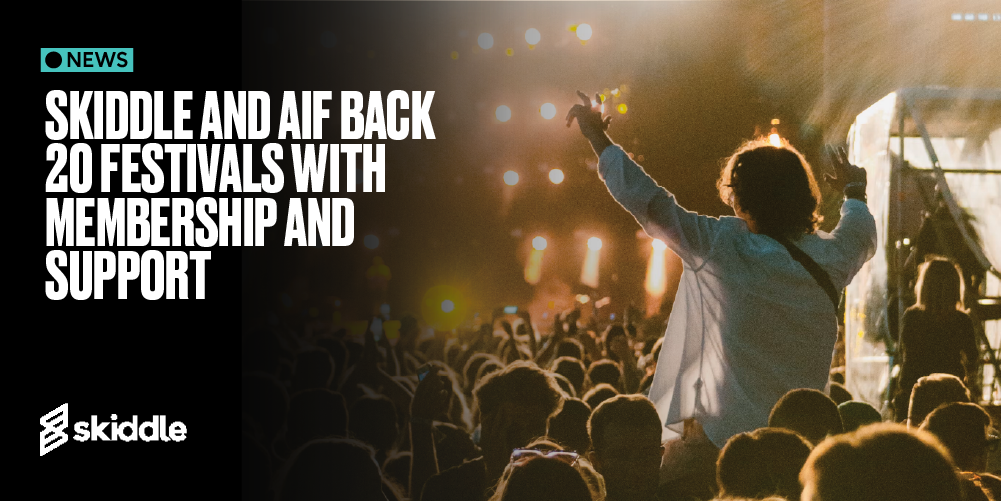
Skiddle and AIF back 20 festivals with membership and support
-
By Dale Grogan
- 10 Nov 2026
- 4 min read
Read article
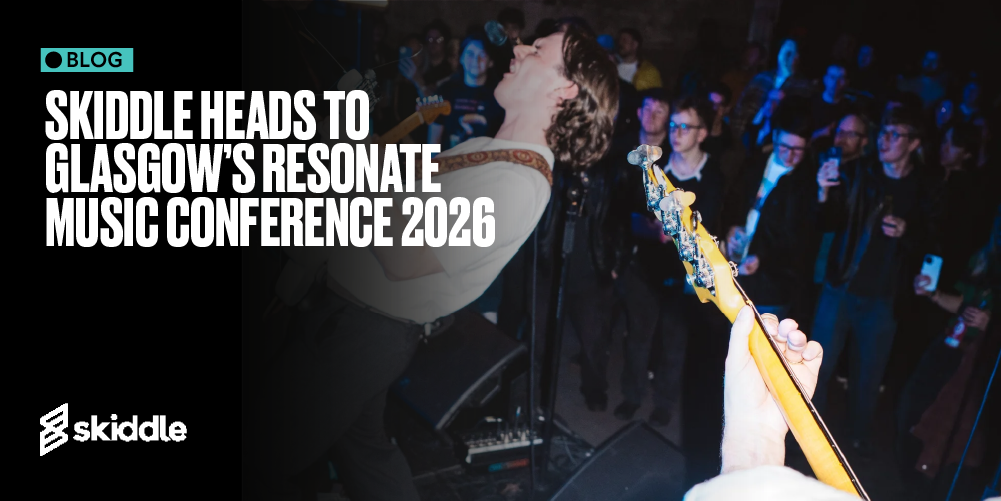
Skiddle heads to Glasgow’s Resonate Music Conference 2026
-
By Dale Grogan
- 09 Nov 2026
- 5 min read
Read article
Autumn Budget 2026: What it means for those in events?
-
By Dale Grogan
- 29 Oct 2026
- 7 min read
Read article
How to get involved with Black Friday and Cyber Monday on Skiddle
-
By Ryan Moss
- 27 Oct 2026
- 7 min read
Read article

Skiddle Report: Freshers Week 2026
-
By Dale Grogan
- 26 Oct 2026
- 6 min read
Read article
Welcome to Skiddle: Africa Oyé
-
By Dale Grogan
- 20 Oct 2026
- 3 min read
Read article
Come see us at The Showman’s Show and Un-Convention this October
-
By Dale Grogan
- 13 Oct 2026
- 7 min read
Read article
Welcome to Skiddle: Magna Science Adventure Centre
-
By Dale Grogan
- 08 Oct 2026
- 3 min read
Accessibility settings
Accessibility profiles
Content
Navigation
Colour