




Read article
How to promote a Halloween event
-
By Dale Grogan
- 16 Sep 2026
- 11 min read
Home » Sell tickets »
From Halloween club nights and pumpkin patches to immersive scare attractions, the Skiddle Promotion Centre provides everything you need to sell more tickets and fill every session this Halloween.
Register your account
Create your free Promotion Centre account and start listing Halloween events in minutes.
Create an event
Set up single events, timed sessions, or multi-date experiences with tools built for seasonal attractions and promoters.
Start selling tickets
Reach Halloween fans and sell tickets with no upfront costs.
Highly rated by our customers
Running a haunted attraction or Halloween film screening with timed entry? Create easy-to-book sessions that keep bookings organised and capacity under control. Learn more
Running Halloween events throughout October? Create and manage a series of events from one place, saving valuable time during your busiest season. Learn more
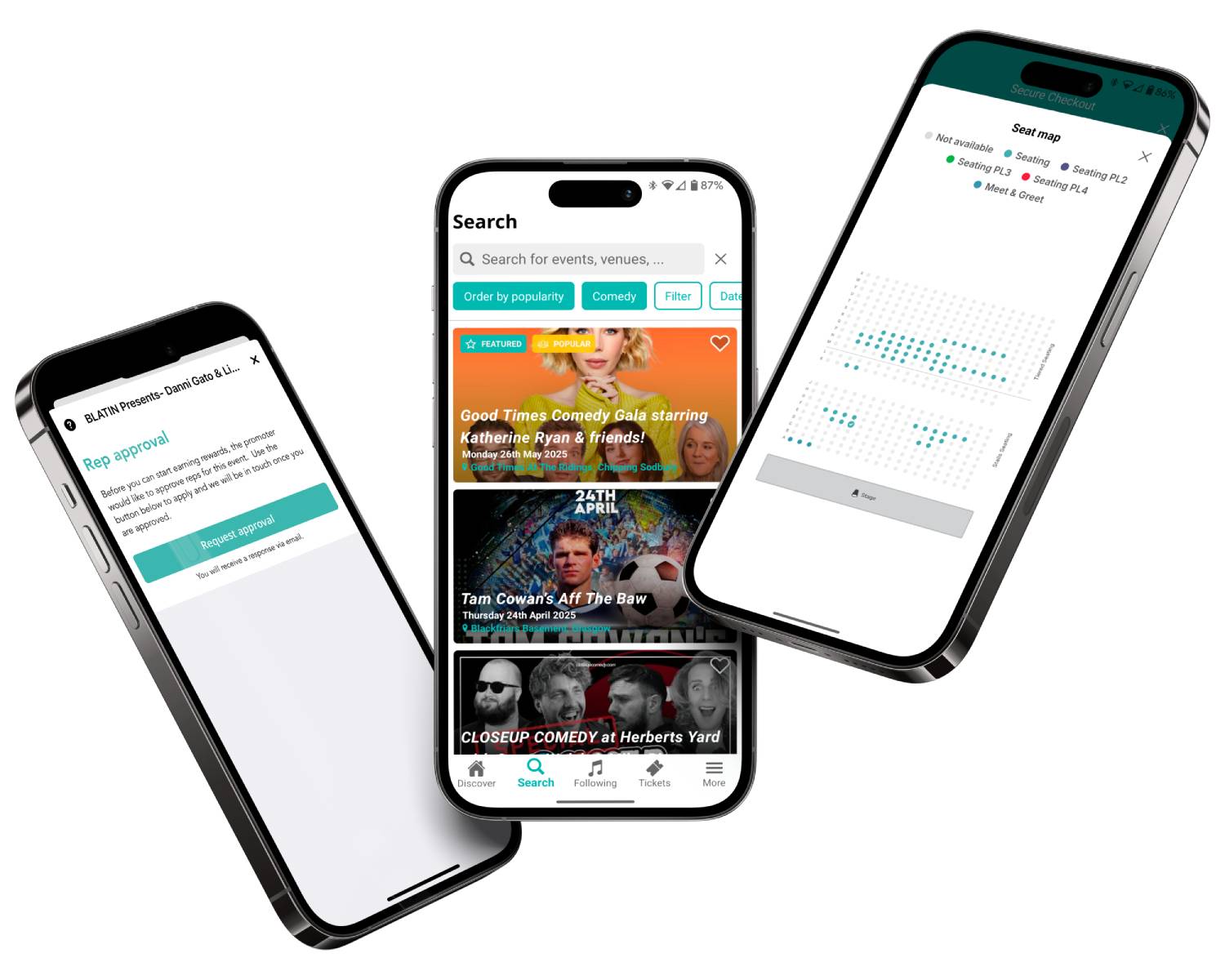
Customers following your brand on Skiddle receive app and email alerts when new events go live, helping you generate early ticket sales and build momentum throughout the spooky season. Learn more
Reward loyal customers, encourage group bookings, and drive early sales with discount codes designed to turn interest into bookings. Learn more
What promoters say
““We've worked with Skiddle across a number of events including Spooktacular Glasgow, and they have always been a pleasure to work with. The platform is straight forward to use, ticket sales are easy to manage and our account manager is always on hand to help if needed. It is incredibly important to us that our customers have a smooth booking experience and Skiddle ensures this for us.””
Spooktacular Glasgow/MT Attractions
Read article
By Dale Grogan
Read article
By Dale Grogan
Read article
By Dale Grogan
| Feature |

|
See Tickets | Ticketmaster | Gigantic | Eventbrite |
| Brand Alerts | Yes | Yes | Yes | Yes | Yes |
| Push Notifications | Yes | No | Yes | No | Yes |
| Cool Off (72hr Refund) | Yes | No | No | No | No |
| Customer App | Yes | No | Yes | No | Yes |
| WhatsApp/SMS alerts | Yes | No | No | No | No |
| Spotify Integration | Yes | Yes | Yes | Yes | No |
| Same-day Remittance Payments | Yes | No | No | No | No |
| White Label Ticketing | Yes | Yes | Yes | Yes | No |
| Skiddle Reps (Affiliate Marketing) | Yes | No | No | No | No |
| Dedicated In-house Marketing Team | Yes | Yes | No | Yes | No |
Get in touch with our Account Support team.
How do I set up Session-Based Ticketing for repeating events?
How do I add checkout questions?
How do I export the answers to my checkout questions?
How do I scan my event tickets?
Accessibility settings
Accessibility profiles
Content
Navigation
Colour