drag • drag • drag • drag • drag • drag •
play me • play me • play me • play me • play me • play me •

Create Fully-Booked Festive Experiences

Whether you’re welcoming families to a Santa’s grotto or guiding visitors through a festive light trail, manage bookings with confidence and deliver a smoother experience at every step.

Form

Register your account

Create your free Promotion Centre account and start listing festive experiences in minutes.

Calendar

Create an event

Set up recurring events and timed sessions, and reward visitors with discounts to drive sales throughout the festive season.

App

Start selling tickets

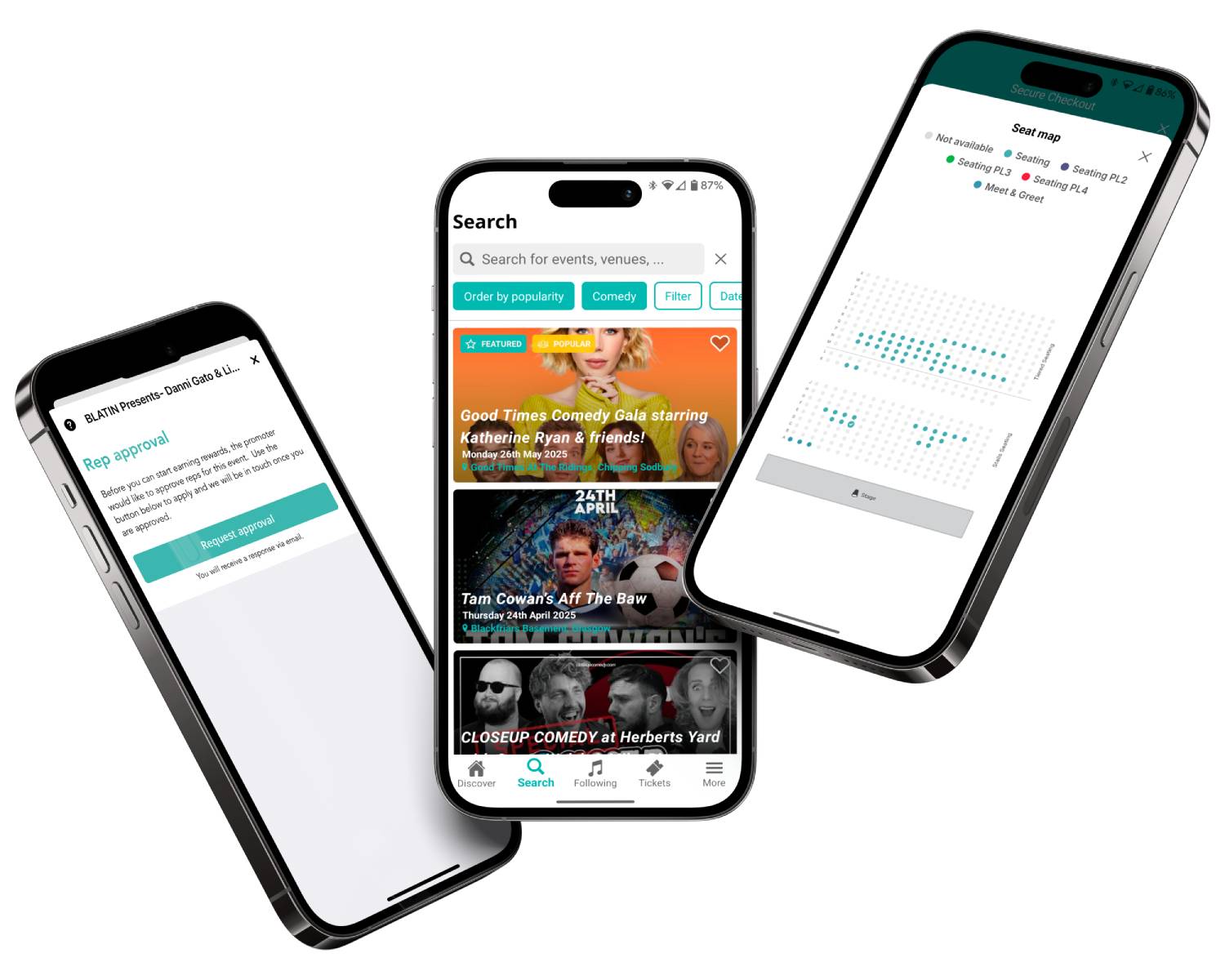
Reach festive merrymakers and sell tickets with no upfront costs.

Couple at Christmas markets

Highly rated by our customers

Trusted by the biggest names in the industry

"The Skiddle team are very hands-on in their approach. They strive to answer any queries we might have promptly. They always ensure the whole process of setting up and running an event is a seamless one. We couldn't recommend using them enough."

Digbeth Dining Club

65,236 Skiddle followers

"The ease of managing events and allocations in the Promotion Centre is fantastic, and the data and reports available provide us with useful insights into our audience demographic, sales patterns and more."

The Blast

3,099 Skiddle followers

"We use Skiddle to sell tickets across all of our events & festivals, and would highly recommend their services to any event organiser. The easy-to-use back-end dashboard, sign-up campaign options and direct account manager support make the whole ticketing process very easy."

Glorious Day Festival logo
Comedy Features

For festive experiences that run like clockwork

choices
Easy to manage sessions

Create timed-entry slots throughout the day or evening to maximise capacity, reduce queues, and give visitors a smoother experience from arrival to departure. Learn more

project
Launch a full season in minutes

Running multiple dates throughout the festive period? Create and manage event series from one place, reducing manual data entry and saving valuable time. Learn more

discounts
Reward returning families

Create custom discount codes to encourage advance sales, reward loyal customers, and give families another reason to book to attend your events. Learn more

qr scan (1)
Keep queues moving

Use RapidScan, Skiddle’s free ticket scanning app, to speed up entry, manage attendance safely, and help guests spend less time waiting and more time enjoying the experience. Learn more

Latest news

Feature comparison

Feature Skiddle Eventbrite Ticket Tailor FIXR See Tickets
Brand Alerts Yes Yes No Yes Yes
Event Brands Yes Yes Yes Yes Yes
Cool Off (72hr Refund) Yes No No No No
Payment Plans Yes No No Yes Yes
Remind Me premium (SMS alerts) Yes No No No No
UK-based support team Yes No Yes Yes Yes
Same-day remittance payments Yes No No No No
Allocated seating Yes Yes Yes No Yes
Skiddle Reps (Affiliate Marketing) Yes No No Yes No
Dedicated in-house marketing team Yes No No No Yes
White label ticketing Yes No Yes Yes Yes
icon-swipe Swipe to compare

Got questions about listing your event?

Get in touch with our Account Support team.

Get in touch

How do I set up Session-Based Ticketing for repeating events?
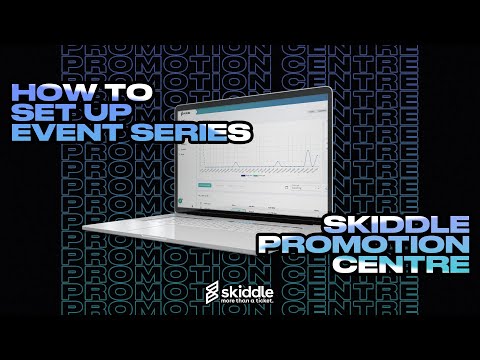
Click ‘Add New Event’ on the left-hand navigation menu of the Promotion Centre dashboard and set up your event as normal. When you reach the ‘When Does Your Event Run?’ step, select ‘Event Series’. Add the dates and times of your recurring event and click ‘Save’. On the next screen, select ‘Timed Sessions’ and choose the capacity of each session whilst setting your intervals. Then click ‘Continue to Step 2’. Continue through the event flow, complete as normal and add tickets. Read our FAQ article on using Session-Based Ticketing or watch our how-to video guide on Session-Based Ticketing below.
Read the full article

How do I use Event Series?

Click ‘Add New Event’ on the left-hand navigation menu of the Promotion Centre dashboard and set up your event as normal. When you reach the ‘When Does Your Event Run?’ step, select ‘Event Series’. Add your dates to the calendar by clicking the ‘+’ icon, or quickly add multiple dates using the ‘Add Repeating Series’ button. Read our FAQ article on using Event Series or watch our how-to video guide below.
Read full article

How do I set up an allocated seating event?

If your event needs allocated seating, our Account Support team is on hand and ready to assist. Just email them at promoters@skiddle.com to get started.
Read the full article

How do I scan my event tickets?

Tickets to your event can be scanned quickly and with-ease using our innovative RapidScan app, available to download for free for both iPhone and Android users. Read our FAQ article on scanning event tickets or watch our how-to video guide on RapidScan below.
Read the full article

How do I add checkout questions?

To add checkout questions to your event, firstly select the relevant event from the Promotion Centre dashboard. Then head to the left-hand navigation menu, select the 'Customers/Orders' drop down, and click 'Checkout Questions'. In the pop-up, enter your questions and any additional information before clicking ‘Add Question’.
Read the full article

This website uses cookies to enhance user experience and to analyze performance and traffic on our website. About cookies

All accessibility options have been reset

Accessibility settings

Accessibility profiles

Colour blind
Dyslexia

Content

Increase text
Line height
Dyslexia Friendly
Hide images
Text Alignment

Navigation

Zoom: 100%

Colour

Grayscale
High saturation
Low saturation
High contrast